Stores
Notes, tasks, and alerts
Leave notes on a store for your team, mention teammates, turn notes into tasks with an assignee and due date, and keep up with My tasks and Alerts.
Every store has a Notes tab where your team can share information and hand out jobs. Use it for things like “Delivery moved to Thursday” or “Update the store photos before the sale”.
- A note shares information with your team.
- A task is a note that someone has to act on. It has an assignee and a due date.
- Alerts tell you when someone mentions you or gives you a task.
The Notes tab
Open a store from the Stores list and click the Notes tab. The number next to it is how many notes and tasks the store has.
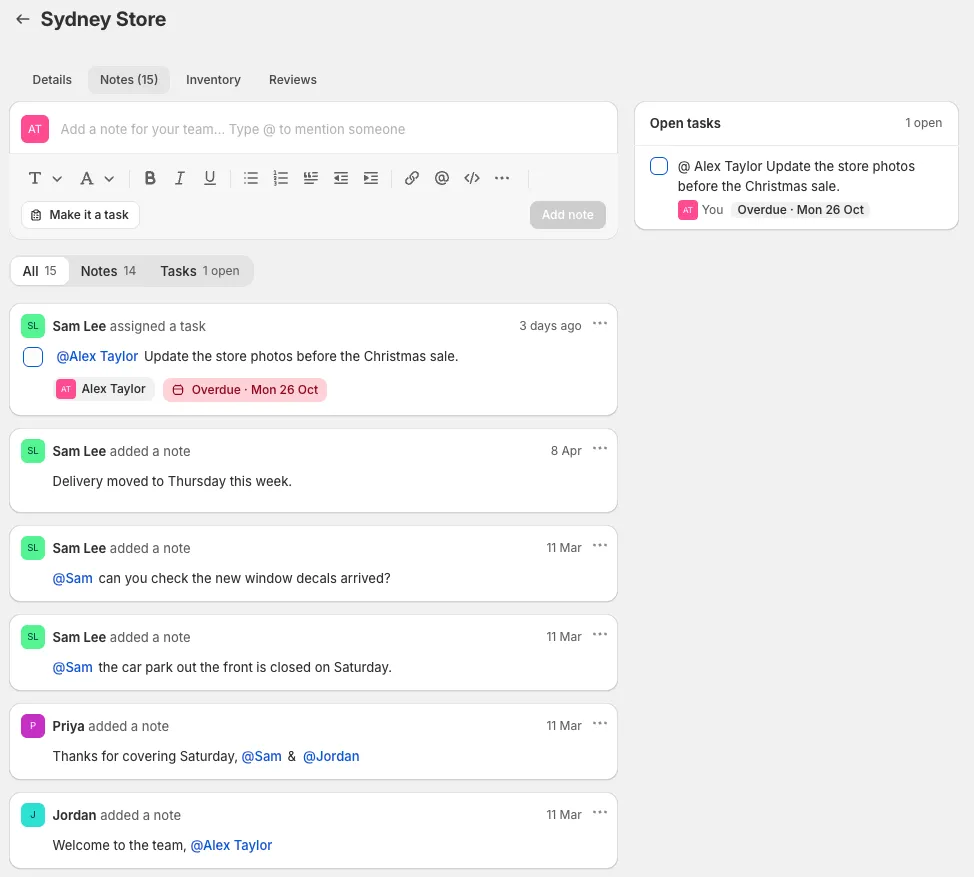
- The editor at the top is where you write a new note or task.
- All, Notes, and Tasks filter the list. Tasks shows how many are still open.
- Notes and tasks are listed newest first, with who added them and when.
- The Open tasks card on the right lists the store’s unfinished tasks, with who they’re assigned to and when they’re due.
Add a note
- Click in the box that says Add a note for your team…
- Type your note. Use the toolbar to add headings, bold text, lists, links, or code.
- To get someone’s attention, type @ and choose a teammate. They get an alert. You can also click the @ button in the toolbar.
- Click Add note.
Add a task
- Type the task in the note box, for example “Replace the window display before the Christmas sale”.
- Click Make it a task.
- Optionally, under Start from a template, pick a task template to fill in the task for you.
- Under Assign to, click Choose member and pick the teammate who should do it. Type to search.
- Under Due, choose Today, Tomorrow, Next week, or Date to pick a date.
- Click Create task, or press ⌘ + Enter on a Mac.
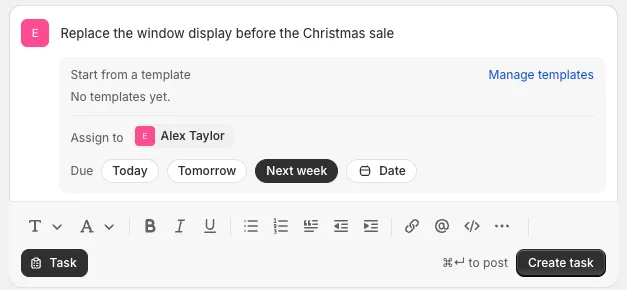
Create task stays greyed out until you choose who it’s for. The teammate gets an alert, and the task appears in their My tasks.
To go back to a plain note, click Task to switch it off.
Task templates
If your team does the same jobs again and again, set up task templates. Click Manage templates in the task editor, or go to Settings › Task templates. See Task templates.
Your organisation can also decide whether members can write their own tasks or can only use templates.
Manage notes and tasks
Click the ⋯ menu on a task to:
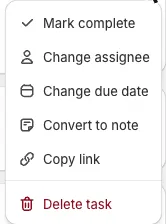
| Option | What it does |
|---|---|
| Mark complete | Marks the task as done. You can also tick its checkbox. |
| Change assignee | Gives the task to someone else. |
| Change due date | Moves the due date. |
| Convert to note | Turns the task back into a plain note. |
| Copy link | Copies a link to the task, to share with a teammate. |
| Delete task | Removes the task. |
The ⋯ menu on a note has Convert to task, Copy link, and Delete note.
There’s no option to edit a note. To correct one, delete it and add it again.
Overdue tasks
A task that’s past its due date shows Overdue in red, with the date it was due. Overdue tasks are also grouped at the top of My tasks.
My tasks
Click My tasks (the clipboard icon) in the top bar to see your tasks for every store. The red number is how many you still have to do.
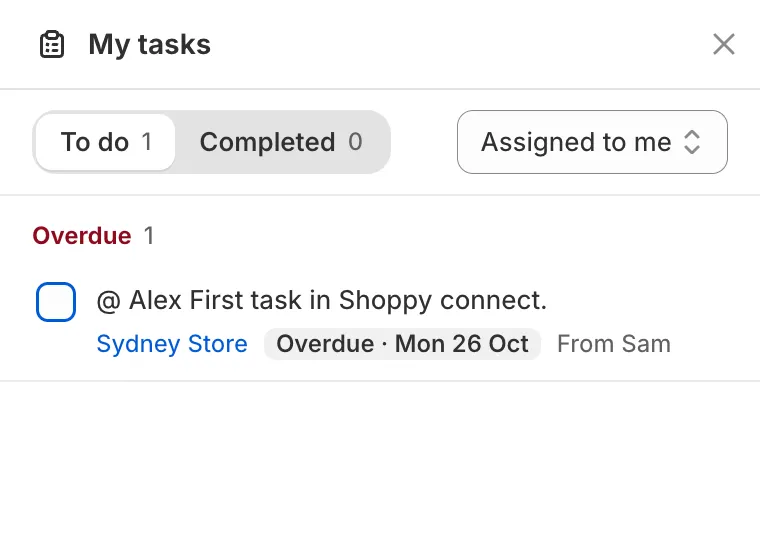
- To do and Completed switch between open and finished tasks.
- The filter on the right switches between Assigned to me and Assigned by me. Use Assigned by me to follow up on tasks you gave to others.
- Each task shows its store, due date, and who created it. Click the store name to open the store.
- Tick the checkbox to mark a task as done.
Alerts
Click Alerts (the bell icon) in the top bar to see your notifications. The red number is how many are unread.
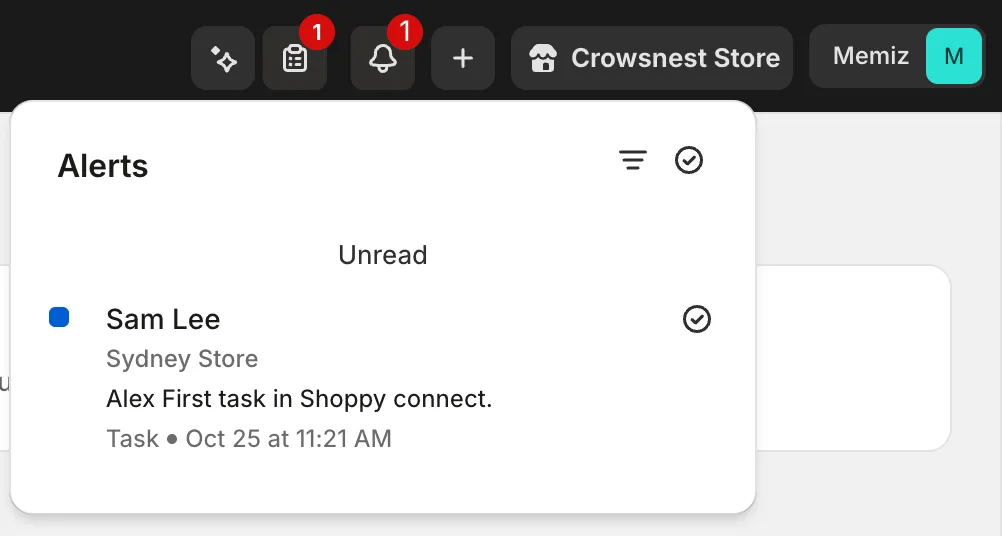
You get an alert when:
- Someone gives you a task (Task).
- Someone mentions you in a note (Mention).
- Shoppy Connect can’t update your stores on Google (Sync failure). See Troubleshooting.
Each alert shows who it’s from, the store, and the message.
- Click the tick next to an alert to mark it as read.
- Click the tick at the top of the panel to mark every alert as read.
- Click the filter icon to switch between Unread and Read alerts.
Tips
- Write tasks as a clear action, such as “Replace the window display”, not “Window display”.
- Always set a due date, so tasks don’t get forgotten.
- Use notes for information and tasks for jobs. Don’t add a task when nobody has to do anything.
- Mention people only when they need to read the note, so alerts stay useful.
- Check My tasks and Alerts every day.
Troubleshooting
Create task is greyed out. Choose who the task is for under Assign to.
I can’t find a teammate under Assign to or @. Check that they’ve accepted their invitation and can access the store. See Team and account.
I can’t write my own task. Your organisation may only allow tasks from templates. Ask an administrator to check Settings › Task templates.