Channels
Channel sync
Connect the platforms where customers find you, choose which stores appear on each one, and keep them up to date.
You only need to keep your store details up to date in one place: Shoppy Connect. Channels are the places those details are shared with, such as Google, your Shopify website, your store locator, and your email marketing. When a store’s address, phone number, or hours change in Shoppy Connect, channel sync sends the change to every channel the store is published to, so customers see the same details everywhere.
There are two levels to set up:
- Organisation level: connect each channel once for your whole organisation.
- Store level: choose which of your stores appear on each connected channel.
Available channels
Go to Channels in the sidebar to see every channel and whether it’s connected.
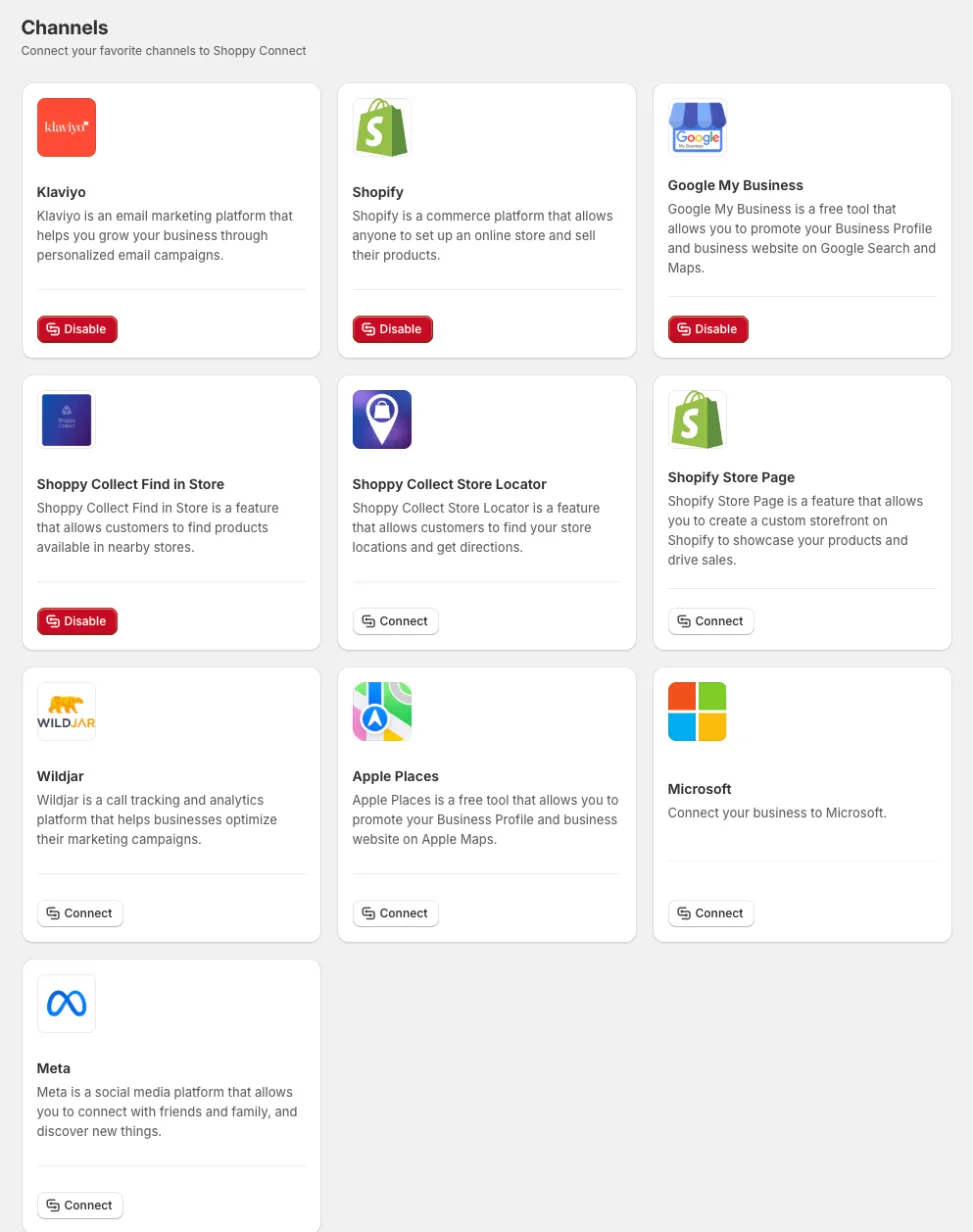
| Channel | What it does |
|---|---|
| Klaviyo | Shares store information with your Klaviyo email marketing. |
| Shopify | Links your stores to your Shopify locations. |
| Google My Business | Keeps your Google Business Profile listings up to date on Google Search and Maps. |
| Shoppy Collect Find in Store | Lets customers see which nearby stores have a product in stock. |
| Shoppy Collect Store Locator | Lets customers find your stores on your website and get directions. |
| Shopify Store Page | Creates a page on your Shopify site for each store. |
| Wildjar | Call tracking and call analytics for your stores. |
| Apple Places | Shows your stores on Apple Maps. |
| Microsoft | Shows your stores on Microsoft services such as Bing. |
| Meta | Connects your stores to Meta (Facebook and Instagram). |
Connect a channel
- Go to Channels.
- Find the channel and click Connect.
- Follow the steps to sign in to that platform and allow Shoppy Connect to access it.
When a channel is connected, its button changes to Disable.
Disconnect a channel
Click Disable on the channel’s card. Shoppy Connect stops sending updates to that channel for all of your stores. Your stores and their details stay in Shoppy Connect, so you can connect the channel again later.
Choose which stores appear on each channel
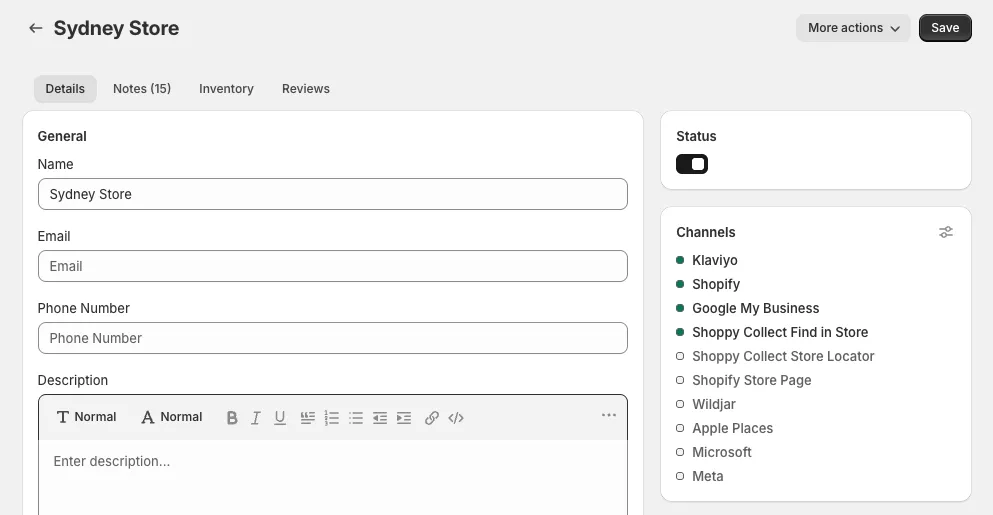
Each store has a Channels card on the right of its Details tab. It lists every channel:
- A filled dot means the store is published to that channel.
- An empty dot means it isn’t.
To change where a store is published:
- Open the store from the Stores list.
- On the Channels card, click the settings icon in the top-right corner.
- In Manage publishing, switch each option on or off for this store.
- Click Done, then click Save on the store.
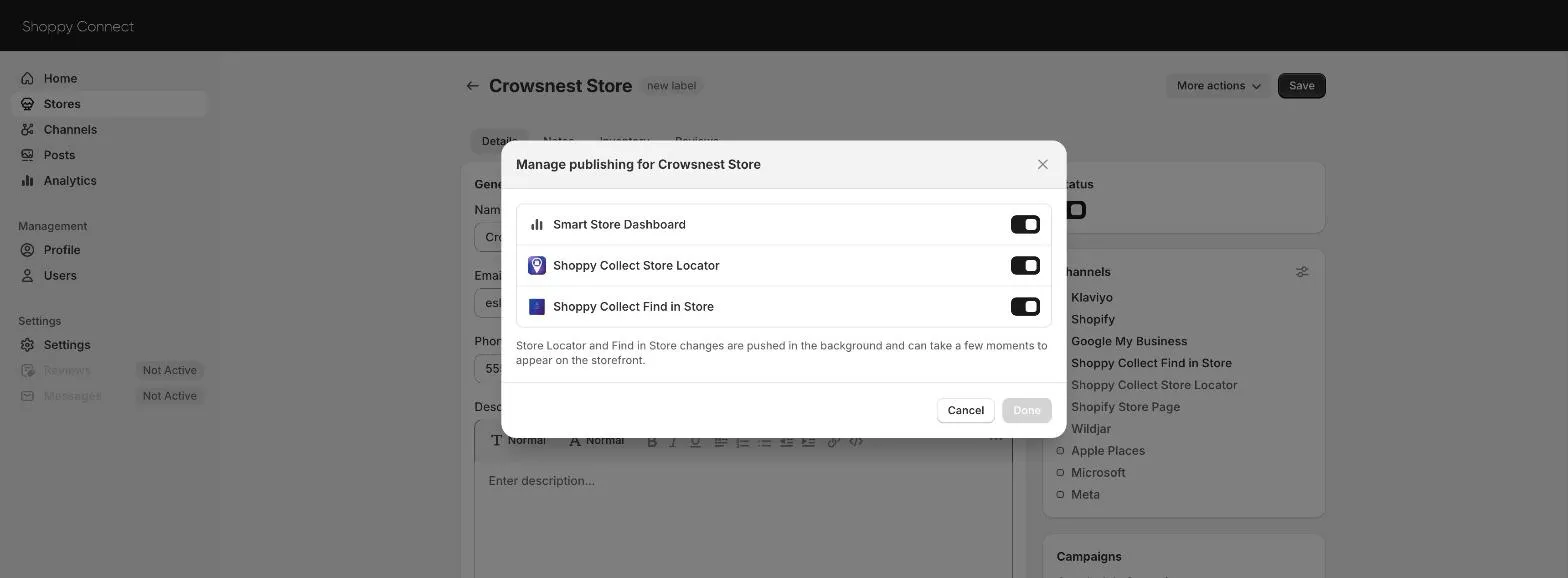
Changes to the store locator and Find in Store are sent in the background, so they can take a few moments to appear on your website.
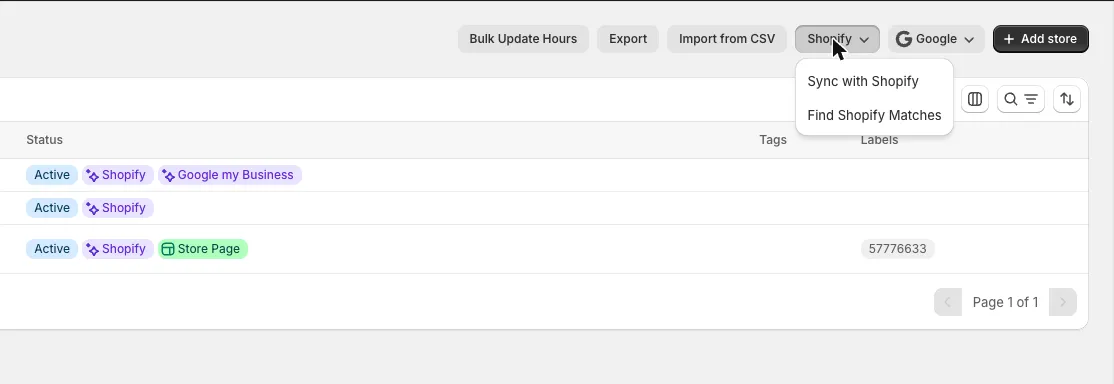
You can also see where each store is published in the Status column of the Stores list, which shows a badge for each channel, such as Shopify, Google my Business, or Store Page.
Send changes to your channels
After you change a store, you can send its latest details to its channels straight away:
- Open the store.
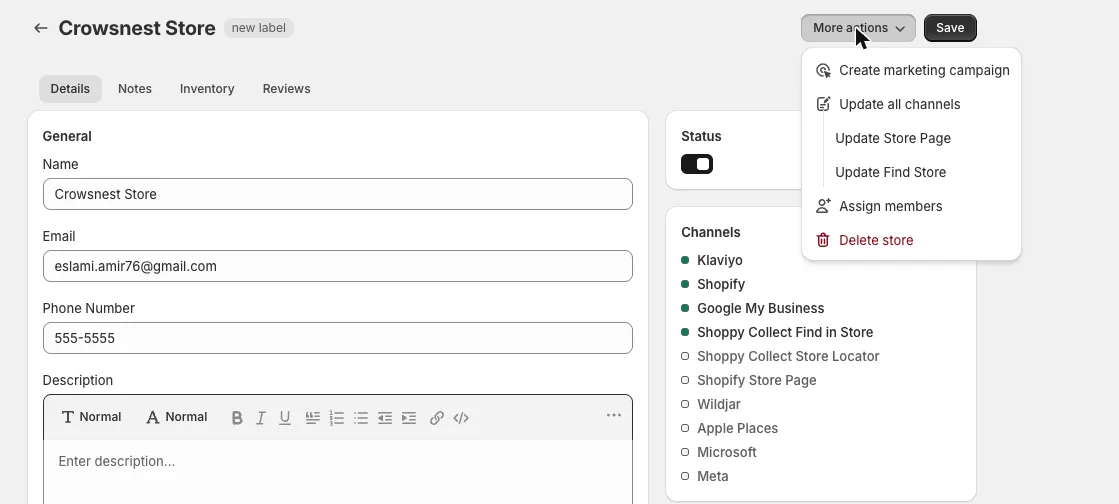
- Click More actions.
- Choose one of these:
- Update all channels sends the store’s details to every channel it’s published to.
- Update Store Page updates only the store’s page on your Shopify site.
- Update Find Store updates only Find in Store.
Google also syncs on a schedule you choose. See Google Business Profile.
Link stores to Shopify locations
If you sell on Shopify, each store in Shoppy Connect should be linked to its location in Shopify. Use the Shopify menu on the Stores page:
- Sync with Shopify brings your Shopify locations into Shoppy Connect.
- Find Shopify Matches links stores you already have in Shoppy Connect to their Shopify locations.
Troubleshooting
A store isn’t showing on a channel. Check that the channel is connected on the Channels page, and that the store has a filled dot for that channel on its Channels card. Then open the store and use More actions › Update all channels.
A change isn’t showing on my website yet. Store locator and Find in Store updates run in the background. Wait a few minutes, then refresh the page.
A store should be hidden everywhere for a while. Switch off the store’s Status instead of deleting it. You can switch it back on later.