Posts
Posts
Write news, announcements, and blog posts that appear on your store pages, and keep them up to date.
Posts let you tell customers what’s happening at your stores, such as a new store opening, holiday trading hours, or a promotion. Posts appear on every store page in your store locator, so you only need to write them once.
Types of post
| Type | Use it for |
|---|---|
| News | Store updates, such as a new opening or a refit. |
| Announcement | Short, time-sensitive notices, such as holiday trading hours or a closure. |
| Blog Post | Longer articles, such as product guides, tips, or stories. |
The Posts page
Click Posts in the sidebar to see all of your posts.

If you haven’t written any posts yet, the page suggests three ways to start:
- Announce trading hours starts an Announcement.
- Share store news starts a News post.
- Write a blog post starts a Blog Post.
Once you have posts, you can filter the list to see your Published posts, Drafts, or Featured posts, and sort it. Click a post to edit it.
Write a post
- On the Posts page, click Add post, or one of the suggestions.
- Choose the Type: News, Announcement, or Blog Post.
- Enter a Title.
- Write a short Excerpt: one or two sentences that sum up the post. It’s shown where there isn’t room for the whole post.
- Write the Content. You can format it with headings, bold text, lists, and links.
- Under Image, click Add image to add a picture to the post.
- Under Status, choose:
- Draft to save the post without showing it to customers.
- Published to show it on your store pages.
- Switch on Featured to highlight the post.
- Click Save.
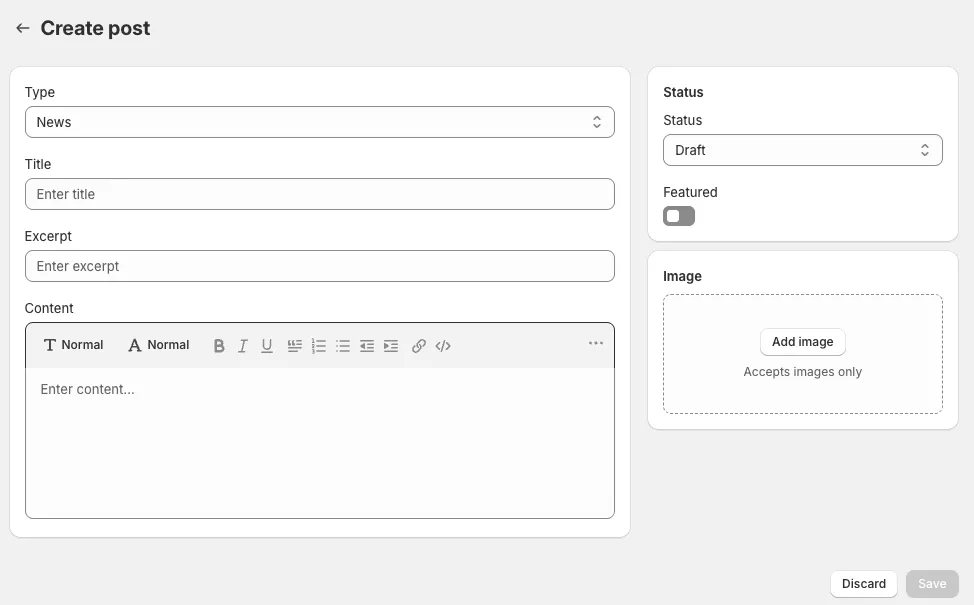
Click Discard to leave without saving.
Draft and published posts
A post only appears on your store pages when its Status is Published. Use Draft while you’re still writing, or when you want someone else to check it first.
To take a post down, open it, change its Status to Draft, and click Save.
Featured posts
Switch on Featured for your most important posts, such as a current promotion or holiday hours, so they stand out. Switch it off again when the post is no longer current.
Tips
- Keep titles short and clear, for example “Open late every Thursday in December”.
- Always fill in the Excerpt. It’s often the only part customers read.
- Add an image. Posts with a picture get more attention.
- Use an Announcement for holiday hours, and also add the hours as special dates, so Google and your store pages show the right hours.
- Review your posts every month, and unpublish any that are out of date.