Channels
Store Locator, Find in Store, and Wildjar
Connect the Shoppy Collect Store Locator and Find in Store to your Shopify website, choose which stores appear, push updates, and add Wildjar call tracking numbers to your stores.
This guide covers three channels that help customers find and contact your stores:
| Channel | What customers see |
|---|---|
| Shoppy Collect Store Locator | A store finder on your Shopify website, where customers find your stores and get directions. |
| Shoppy Collect Find in Store | Which nearby stores have a product, on your Shopify website. |
| Wildjar | A call tracking number for each store, so you can see which calls come from where. |
All three use the store details you keep in Shoppy Connect, so you don’t have to enter your addresses, phone numbers, and hours again.
Connect the channels
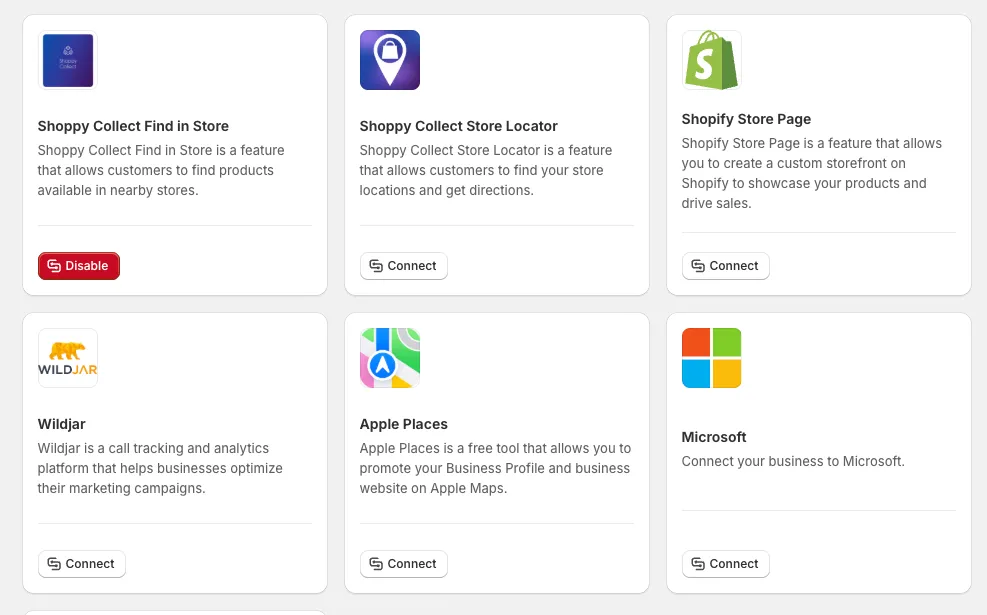
Go to Channels in the sidebar. Each channel has its own card. A connected channel shows a red Disable button. The others show Connect.
Store Locator
The store locator is a page on your Shopify website where customers find your stores, see their details, and get directions.
Connect the store locator
- Go to Channels and click Connect on the Shoppy Collect Store Locator card.
- Under Shopify URL, enter your Shopify store’s address, for example
your-store.myshopify.com. - Click Connect.
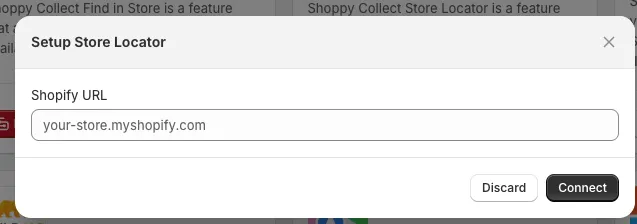
When it works, you see “Store Locator connected”, and the card’s button changes to Disable.
The layout of each store’s page in the store locator is set under Settings › General › Shopify Settings › Store Locator Page Template. See Shopify store pages.
Add stores to the store locator
To add stores to the store locator:
- Go to Stores.
- Tick the stores you want to add.
- In the bar at the top of the list, click Store Locator › Create Stores.
- Check the number of stores in the message, then click Publish.
To add or remove a single store, you can also open it and use the switches in Manage publishing. See Choose which stores appear on each channel.
Update the store locator
When you change a store’s details, the store locator is updated in the background. It can take a few moments to appear on your website.
To send changes straight away:
- Go to Stores and tick the stores you changed.
- Click Store Locator › Update Stores.
- Click Update.
Find in Store
Find in Store lets customers on your Shopify website see which of your nearby stores have a product, so they can buy it in person.
Connect Find in Store
- Go to Channels and click Connect on the Shoppy Collect Find in Store card.
- Under Shopify URL, enter your Shopify store’s address, for example
your-store.myshopify.com. - Click Connect.
When it works, you see “Find in Store connected”.
Add stores to Find in Store
- Go to Stores.
- Tick the stores you want to add.
- In the bar at the top of the list, click Find Store › Create Stores.
- Check the number of stores in the message, then click Publish.
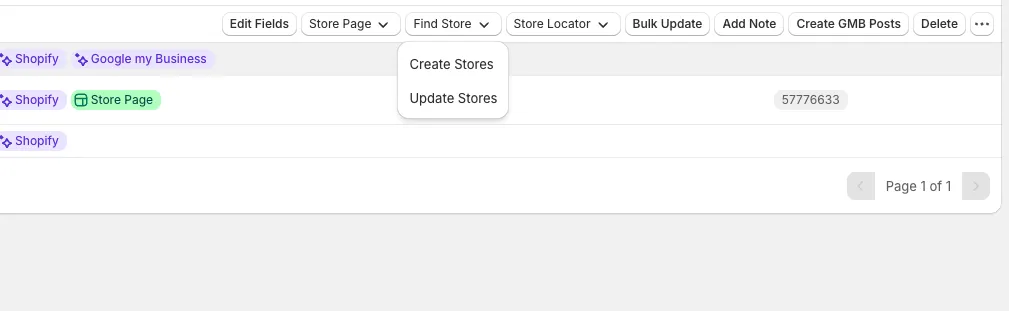
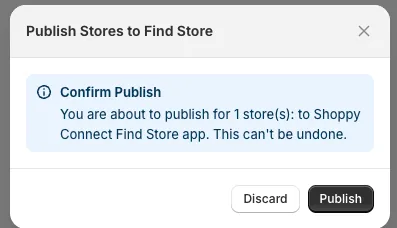
You see “Stores published successfully to Find Store.” when it’s done. To stop a store appearing later, open it and switch off Shoppy Collect Find in Store in Manage publishing.
Update Find in Store
Find in Store is also updated in the background when you change a store. To send changes straight away:
- Go to Stores and tick the stores you changed.
- Click Find Store › Update Stores.
- Click Push.
For a single store, you can also open it and use More actions › Update Find Store, if it’s in the menu.
Wildjar call tracking
Wildjar gives each store its own tracking phone number, so you can see how many calls each store gets and where they come from. You need a Wildjar account with your tracking numbers already set up.
Connect Wildjar
- Go to Channels and click Connect on the Wildjar card.
- Enter your Wildjar Username and Password.
- Click Connect.
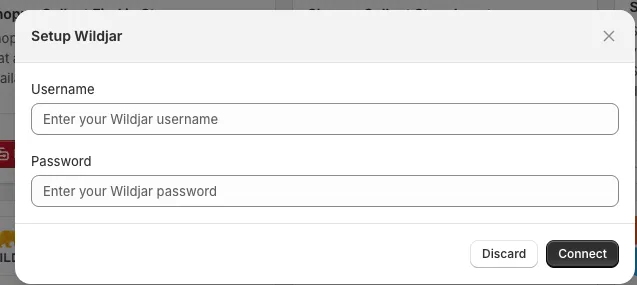
When it works, you see “Wildjar connected”.
Add a tracking number to a store
Once Wildjar is connected, each store’s Details tab has a Wildjar card.
- Open the store from the Stores list.
- On the Wildjar card, click Tracking Number and choose the store’s number. Each number shows its name in Wildjar and its phone number. Type to search.
- Click Save.
Use a different tracking number for each store, so each store’s calls are counted separately.
Disconnect a channel
On the Channels page, click Disable on the channel’s card, then click Disconnect. Your stores and their details stay in Shoppy Connect, so you can connect the channel again later.
Disconnecting the store locator or Find in Store stops Shoppy Connect from updating them on your website.
Tips
- After you add a new store in Shoppy Connect, remember to add it to the store locator and Find in Store with Create Stores.
- Before a holiday, add special dates and then use Update Stores, so customers see the right hours straight away.
- Check your store locator on your phone after big changes. Most customers use it on mobile.
- Ask your Wildjar contact to set up one tracking number for each store before you connect.
Troubleshooting
A store isn’t in the store locator or Find in Store. Check that the channel is connected on the Channels page. Then go to Stores, tick the store, and use Create Stores in the Store Locator or Find Store menu.
A change isn’t showing on my website. Updates run in the background. Wait a few minutes and refresh the page. To send the change now, tick the store on the Stores page and use Update Stores.
“Failed to connect Store Locator” or “Failed to connect Find in Store”.
Check that the Shopify URL is your store’s myshopify address, for example your-store.myshopify.com.
“Failed to connect Wildjar”. Check your Wildjar username and password by signing in to Wildjar. Then try again.
There’s no Wildjar card on a store, or no tracking numbers in the list. Check that Wildjar is connected on the Channels page, and that your Wildjar account has tracking numbers.