Settings and design
Default hours, notifications, and tracking
Set the default trading hours for new stores, choose your notification email, and turn on Shoppy Connect tracking.
These settings are on the Trading hours & alerts and Analytics tabs in Settings. Change a setting, then click Save in the bar at the top.
Default trading hours
Default trading hours are the hours new stores start with, whether you add them by hand or import them. Set them before you add your stores and you’ll have less to change.
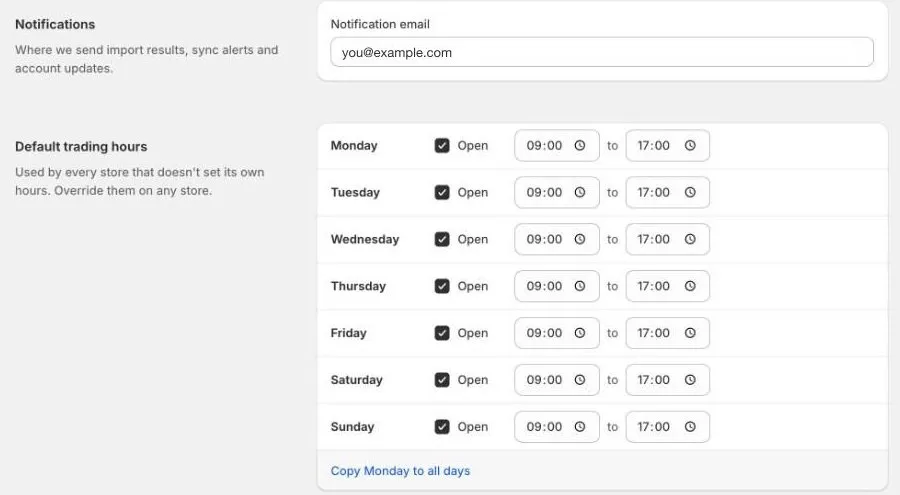
- Go to Settings › Trading hours & alerts.
- For each day, tick Open and set the opening and closing times. Untick Open for days your stores are usually closed.
- To use Monday’s hours for every day, click Copy Monday to all days.
- Click Save.
Changing the defaults doesn’t change stores you already have. To update existing stores, edit each one, or use Bulk edit hours.
Notification email
Enter the email address where you’d like to receive messages about the app, under Notification email. Use an inbox someone checks, such as a shared team address.
Shoppy Connect tracking
If you also use Shoppy Connect, you can see how customers use your store locator there.

- Go to Settings › Analytics.
- Tick Shoppy Connect tracking.
- Click Save.
Your store locator then records searches and store views, so you can see them in Shoppy Connect. It’s off until you turn it on.
Search engine settings, such as structured data, are on the Marketing page. See Structured data for search engines.