Your online store
What shoppers see
How customers use your store locator on your online store, from searching for an address to opening a store's own page.
This guide shows your store locator from your customers’ side. Use it to check your setup, or to answer questions from your customer service team.
The screenshots use the List layout. Other layouts arrange things differently, but work the same way. See Design and layouts.
The store locator page
When customers open your store locator page, they see a search bar, a list of stores, and a map with a pin for each store.
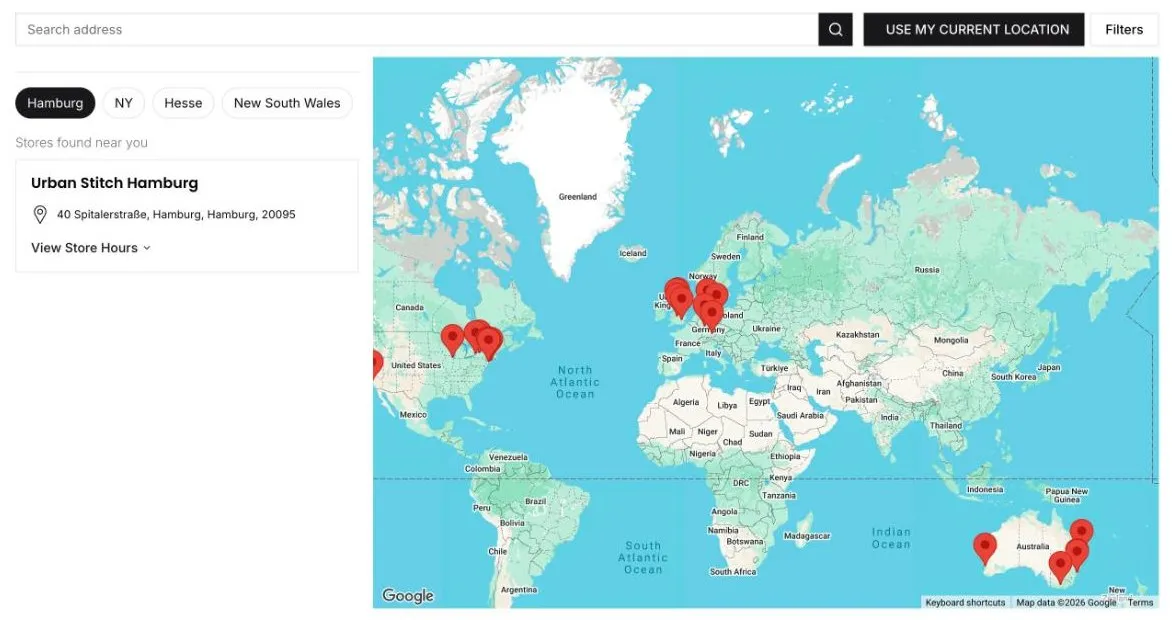
- Search bar: customers type an address, suburb, or postcode.
- Location button: finds stores near the customer. The button text is set in Settings › Search.
- Filters: narrows the list. See Filters.
- Store list: stores are grouped under headings, such as a state or country, when Group results by is turned on. Customers click a heading to see its stores.
- Map: shows a pin for each store. Customers can drag and zoom the map.
Search for a store
As customers type, the store locator suggests matching addresses.
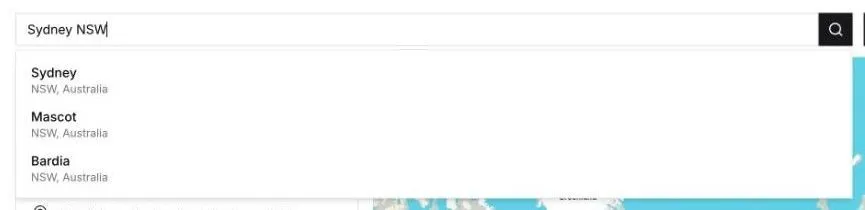
- The customer picks an address from the suggestions.
- They click the search button, or results show straight away if Auto search for locations is on.
- The list shows the stores within your Search radius, nearest first, and the map zooms in on them.
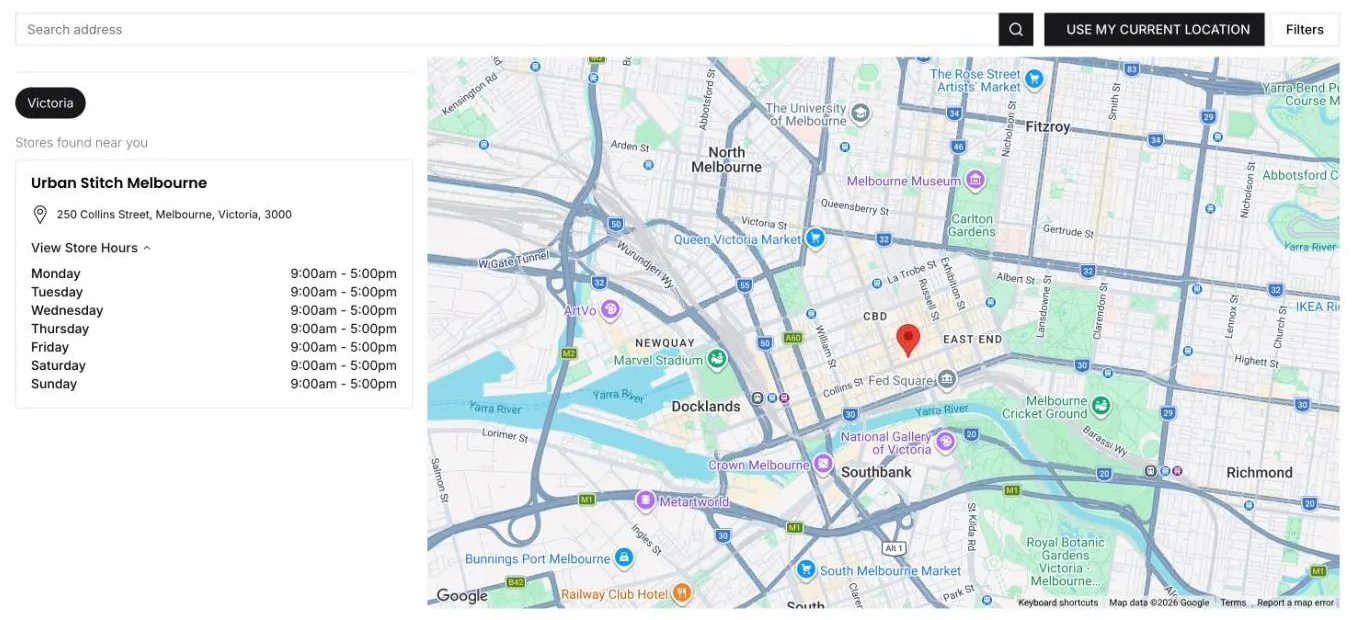
Customers click View Store Hours to see the store’s trading hours for each day.
If no stores are found, customers see your No results message. Change the radius and message in Settings › Search. See Search settings.
Use the map
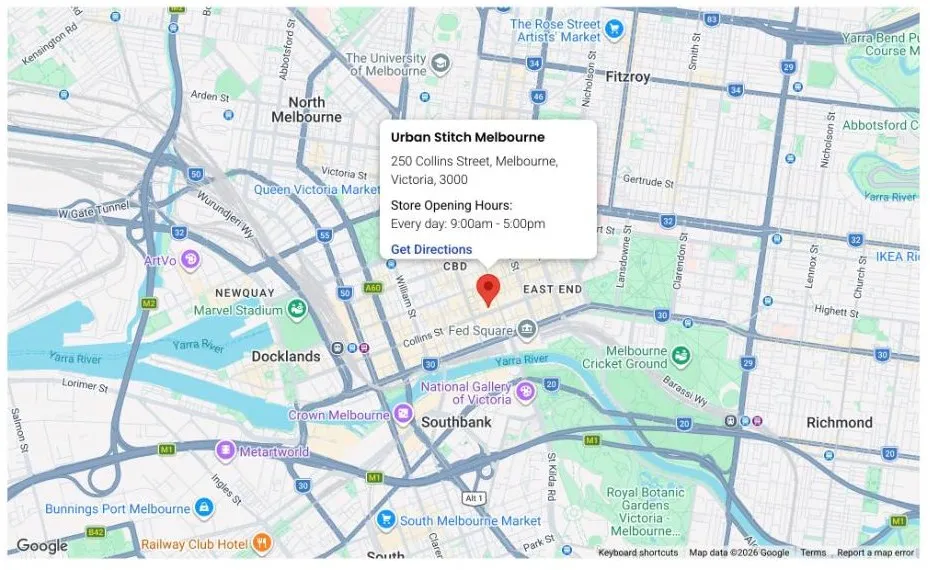
Customers click a pin to see the store’s name, address, and opening hours. Get Directions opens the store’s location in Google Maps, where they can get directions.
Filters
Customers click Filters to narrow the stores they see. They choose their filters, then click Apply filters. Reset clears them.
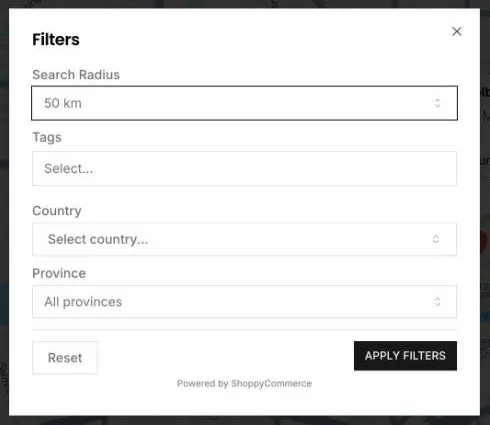
You choose which filters show in Settings › Search › Filters to display. Tag filters use the tags on your stores.
Store pages
If you’ve created store pages, customers can open a page for each store. It shows the store’s details, trading hours, description, and a map.
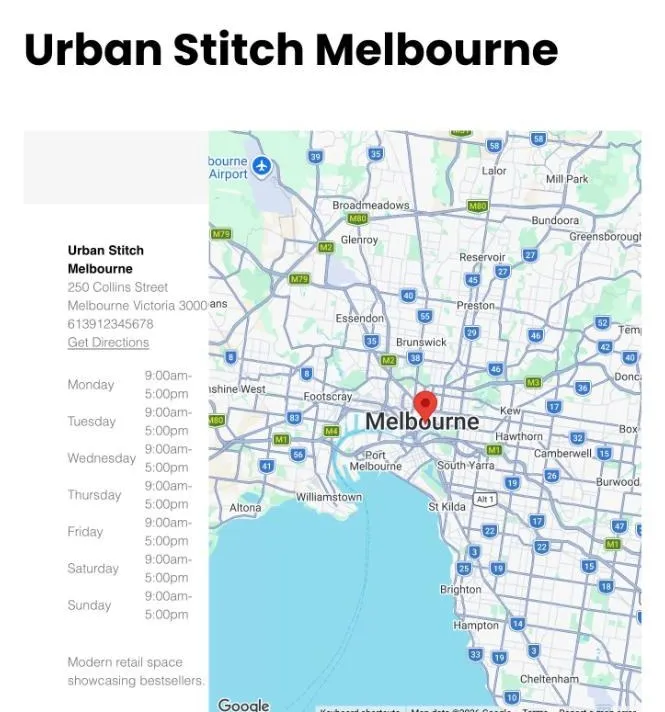
Customers reach a store page from a link in the store list, if you’ve added Store page link or a View button to Store details to show. They can also find it from your menus or search engines.
Language
The store locator shows its text in the language of your online store. If your store is in more than one language, customers see the store locator in the language they chose. See Translations.
Check your store locator
After you change your settings, open your store locator page as a customer would:
- Go to Install widget and click View page.
- Search for an address near one of your stores.
- Check the results, the trading hours, and the map pins.
- Try it on your phone too.
If a store is missing from the map, see Fix stores missing from the map.