Managing stores
Trading hours and special dates
Set each store's weekly trading hours, add public holidays and one-off changes, and update the hours of many stores at once.
Trading hours tell customers when each store is open. Your store locator uses them to show the hours for each store and whether it’s open now.
This guide covers:
Set a store’s weekly hours
- Go to Stores and click a store.
- Scroll to Trading hours.
- For each day:
- Set the opening and closing times.
- Untick Open if the store is closed that day. The times are replaced with Closed.
- Click Save.
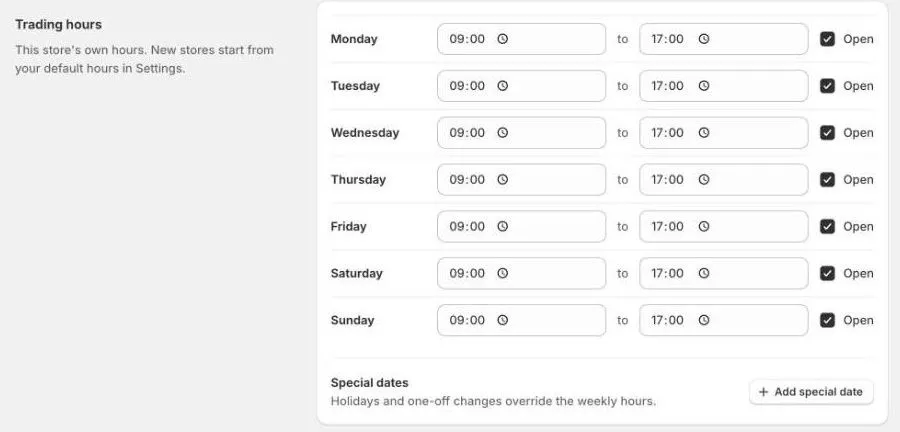
New stores start with your default trading hours, which you set in Settings. Change the defaults before you add your stores and you’ll have less to edit.
Make sure the store’s Timezone is set in Store details. Open now uses the store’s own local time, so a store in Perth and a store in Sydney each show the right status.
Add special dates
Special dates are public holidays and one-off changes, such as Christmas Day or a stocktake. On those dates they replace the weekly hours.
- In Trading hours, click Add special date.
- Enter a Name, for example
Christmas Day. - Pick the date, or a range of dates.
- Under Hours, choose:
- Closed if the store is closed.
- Custom hours to enter the opening and closing times for those dates.
- Click Save.
To remove a special date, click the delete icon next to it, then click Save.
Update hours for many stores
Use Bulk edit hours to give several stores the same hours in one go.
- Go to Stores.
- Tick the stores you want to update.
- Click Bulk edit hours.
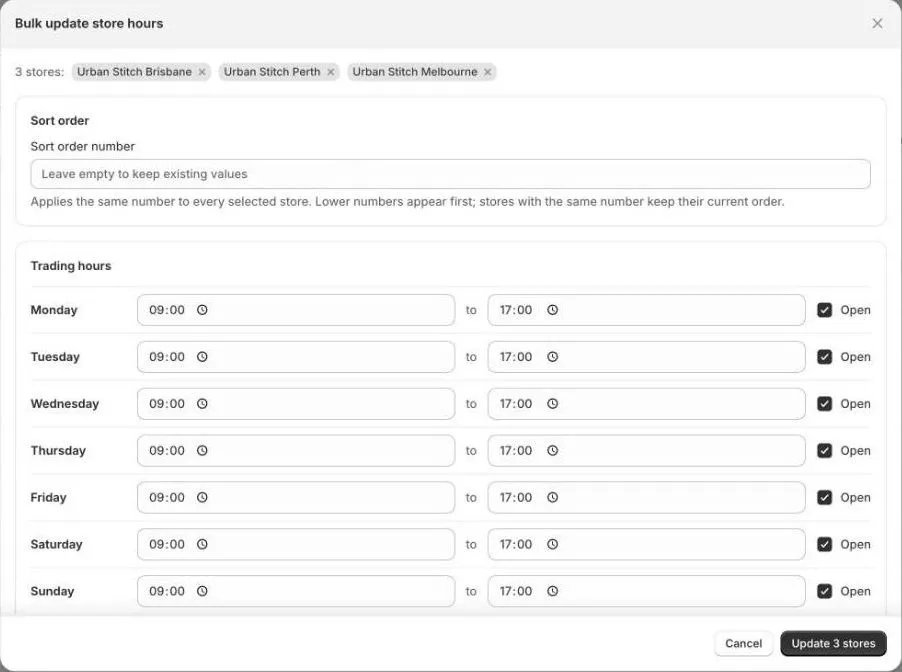
- Check the stores at the top. Click × on a store to leave it out.
- Set the Trading hours for each day.
- Optional: click Add special date to add holidays for all the selected stores.
- Optional: enter a Sort order to give all the selected stores the same position in your store locator. Leave it empty to keep each store’s sort order.
- Click Update to apply.
Keep these in mind before you click Update:
- The weekly hours replace each store’s current hours. The dialog starts with your default hours, not the stores’ own hours, so set every day before you save.
- Special dates you add here replace the stores’ existing special dates. If you don’t add any, the stores keep the special dates they have.
- If a store is linked to Google Business Profile, its new hours are sent to Google too.
Tips
- Add public holidays a few weeks ahead, so customers see the right hours when they plan a visit.
- For stores with the same hours, such as all stores in one shopping centre, use Bulk edit hours and add the holidays at the same time.
- After a change, open your store locator and check Open now for a store or two.