Managing stores
Find and filter stores
Use the Stores page to see your stores on a map, search them, filter by status, country, state, or tag, and sort the list.
The Stores page lists every store in Shoppy Store Locator. Use it to find a store quickly, check which stores need attention, and choose stores for bulk actions.
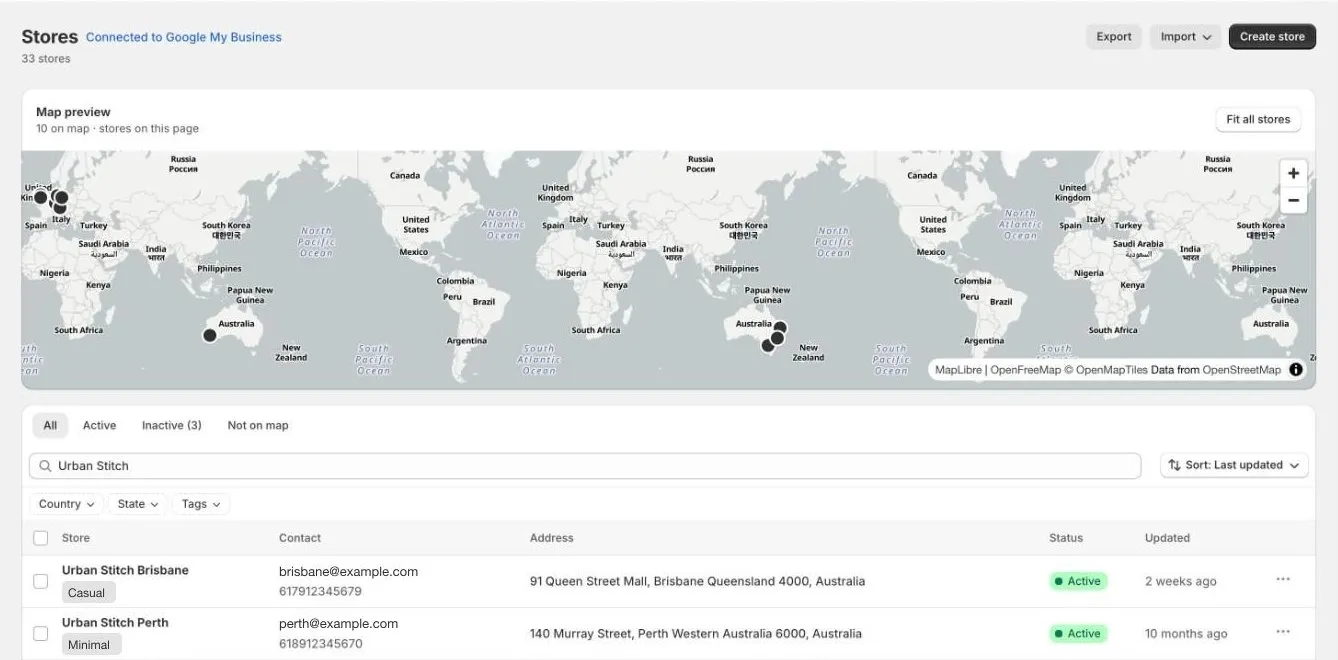
The page at a glance
- The header shows how many stores you have. If you’ve connected Google, Connected to Google My Business appears next to the title.
- Export downloads your stores as a CSV file. Import adds stores from a CSV file, Google My Business, or Shopify locations. Create store adds stores. See Add and edit a store.
- Map preview shows the stores on the current page of the list. Click a pin to open that store. Click Fit all stores to zoom the map to show them all.
The store list
Each row shows:
| Column | What it shows |
|---|---|
| Store | The store name and tags. Linked to Google shows if the store is linked to your Google Business Profile. |
| Contact | The store’s email and phone number. |
| Address | The address. Not on map — no coordinates shows if the store has no pin. |
| Status | Active or Inactive. |
| Updated | When the store was last changed. Hover over it to see the exact date and time. |
Click a row to edit the store. Click ⋯ at the end of a row to Edit store or Delete store.
Tabs
| Tab | Shows |
|---|---|
| All | Every store. |
| Active | Stores shown on your store locator. |
| Inactive | Stores hidden from your store locator. The number in brackets is how many there are. |
| Not on map | Stores without a pin. Customers can’t find these on the map. See Fix stores missing from the map. |
Search
Type in the search field to find stores by name, email, phone number, or address. The list updates as you type. Click × in the field to clear it.
Filters
- Country: show stores in one or more countries.
- State: show stores in one or more states. If you’ve picked a country, only its states are listed.
- Tags: show stores with one or more tags.
The filters you use are shown above the list. Click × on one to remove it, or Clear all to remove them all. Clearing filters doesn’t change the tab or the sort order.
Sort
Click Sort and choose:
- Last updated (newest first): the default.
- Last updated (oldest first)
- Store name A–Z or Store name Z–A
- Status
Sorting here only changes this list. To change the order stores appear in on your store locator, use Sort order on each store, or set it for many stores with Bulk edit hours.
Pages
At the bottom of the list, choose how many stores to show per page: 10, 25, 50, or 100. Use the arrows to move between pages.
If no stores match your search or filters, you’ll see No stores found. Click Clear filters to start again.