Importing and syncing
Google Business Profile
Connect your Google account, import your Google Business Profile locations, link existing stores, and keep trading hours in sync with Google.
If you manage your stores on Google Business Profile (formerly Google My Business), you can import them into Shoppy Store Locator and keep their trading hours in sync, so customers see the same hours on Google and on your store locator.
This guide covers:
- Connect your Google account
- Import your Google locations
- Link stores you already have
- Keep trading hours in sync
- Disconnect Google
Connect your Google account
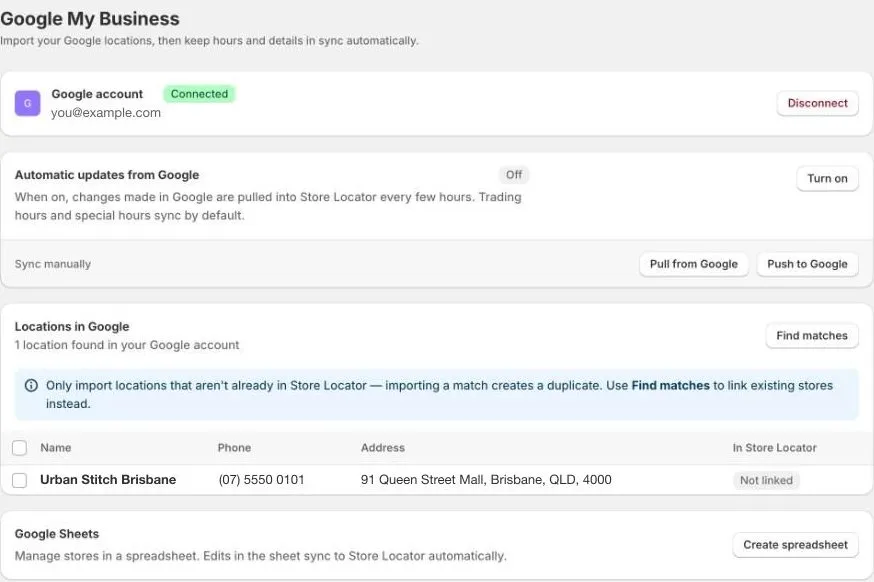
- Go to Google My Business in the app menu. You can also click Import › From Google My Business on the Stores page.
- Click Connect.
- Sign in with the Google account that manages your Business Profile, and allow access.
When it’s connected, the Google account card shows Connected and your email address. Connected to Google My Business also appears at the top of the Stores page.
Import your Google locations
Locations in Google lists every location in your Google account. In Store Locator shows whether each one is already Linked to a store.
- Tick the locations you want to add.
- Click Import as new store.
Each location becomes a store with its name, address, phone number, pin, trading hours, and special hours from Google. It’s linked to Google straight away.
Only import locations that aren’t in Shoppy Store Locator yet. Importing a location you already have creates a duplicate. Link those stores instead.
Link stores you already have
If you already added your stores, for example from a CSV file, link them to their Google locations instead of importing them again.
- Click Find matches.
- The app suggests a Google location for each store it can match. For each store, check the suggestion, or pick the right location under Google Business Profile. Choose Not linked to leave a store unlinked.
- Use the search, or the All, Not linked, and Linked filters, to work through a long list.
- Click Link to save.
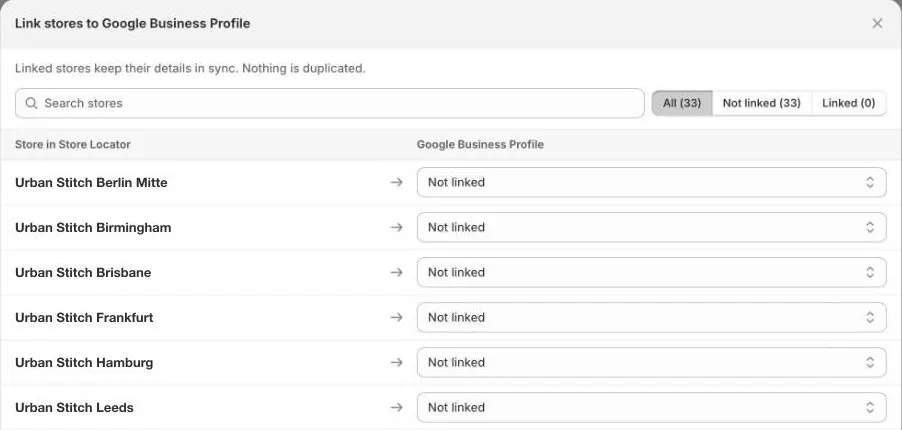
You can also link stores from the Stores page: tick them and click Connect with Google, up to 50 stores at a time.
Linked stores show Linked to Google on the Stores page, and Linked to Google Business Profile when you open them.
Keep trading hours in sync
Once stores are linked, their trading hours and special hours can sync between Google and Shoppy Store Locator. Other details, such as the name, address, and phone number, aren’t synced after the import.
Automatic updates from Google
Click Turn on under Automatic updates from Google. Every few hours, the app pulls changes to trading hours and special hours from Google into your linked stores. It’s off until you turn it on.
Turn it on if Google is where your team usually updates hours.
Sync manually
- Pull from Google: copies the latest hours from Google into your linked stores now.
- Push to Google: sends your linked stores’ hours from Shoppy Store Locator to Google now.
To push only some stores, tick them on the Stores page and click Sync with Google, up to 50 stores at a time.
When you change a linked store’s hours in the app, including with Bulk edit hours, the new hours are sent to Google automatically.
Google can take up to 72 hours to review changes before they show on Google.
Choose where you edit hours
If automatic updates are on, edit hours in one place, preferably Google. Otherwise a change pulled from Google can replace a change you made in the app.
Disconnect Google
Click Disconnect on the Google account card, then confirm. Automatic updates stop. Your stores stay as they are, and imported stores aren’t deleted.
Troubleshooting
| Problem | What to try |
|---|---|
| Couldn’t load your Google locations | Try again in a few minutes. If it keeps happening, disconnect and connect your Google account again. |
| No locations are listed | Check you signed in with the Google account that manages your Business Profile, not a personal account. |
| Some locations are not connected | Sync with Google only works for linked stores. Link the stores first with Find matches or Connect with Google. |
| Hours changed in the app aren’t on Google | Google can take up to 72 hours to review changes. |