Widget settings and design
Tabs and tab footers
Split the Find in Store widget into tabs such as Stock in Store and Delivery, show tabs only on some products, choose the store details shown, and add footer messages.
Tabs split the widget into views, such as Stock in Store and Delivery. Footers add a short message under a tab, such as pickup instructions.
Both are in Settings › Widget appearance. Click Save at the top right after you change them.
Tabs
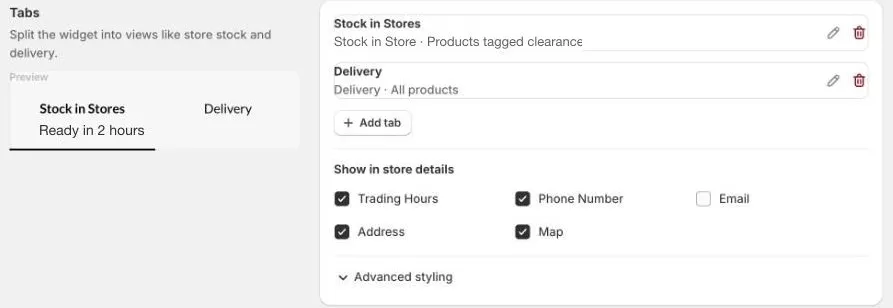
Out of the box, the widget has one tab, Stock in Store.
Add or edit a tab
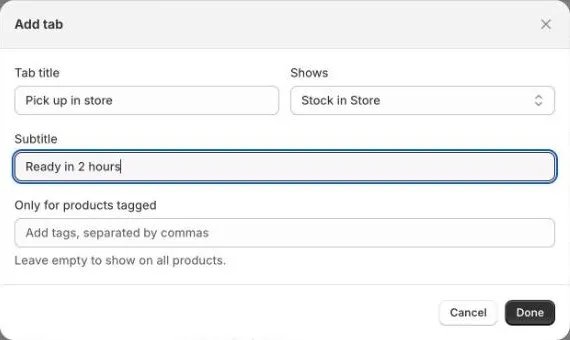
- Under Tabs, click Add tab, or click the pencil next to a tab to edit it.
- Fill in the tab:
- Tab title: the name customers see, for example
Pick up in store. - Shows: what the tab shows. See What each tab can show.
- Subtitle: optional text under the title, for example
Ready in 2 hours. - Only for products tagged: show the tab only on products with these tags, separated by commas. Leave it empty to show the tab on every product.
- Tab title: the name customers see, for example
- Click Done, then Save.
To remove a tab, click the bin next to it, then Save.
What each tab can show
| Shows | What customers see |
|---|---|
| Stock in Store | The nearest stores and how much stock each one has of the chosen variant. |
| Click & Collect | The same store list as Stock in Store. Use it with its own title and footer for pickup, for example Pick up at {{selectedStoreName}}. |
| Delivery | The customer enters their address and sees your shipping options and prices for the product. |
| None | Only the tab’s title and subtitle, with no store list or footer. |
Click & Collect doesn’t reserve stock or create an order. Customers choose a store, then buy online with your usual checkout.
Show in store details
Choose what customers see for each store: Trading Hours, Phone Number, Email, Address, and Map. Untick anything you don’t want to show.
Tab styles
Click Advanced styling to change the tab titles, subtitles, and the line under the active tab: their colour, size, weight, and border.
Tab footers
A footer is a short message under a tab, for example where to pick up an order.

Add or edit a footer
- Under Tab footer, click Add Footer, or click the pencil next to a footer.
- Fill in the footer:
- Title: for example
Pick up at {{selectedStoreName}}.{{selectedStoreName}}is replaced with the store the customer chose. - Description: for example
Bring your order number and photo ID. - Show on tab: the tab the footer belongs to.
- Visible when: Store Is Selected, Store Is Not Selected, or Visible (always).
- Font Weight: how bold the title is.
- Title: for example
- Click Done, then Save.
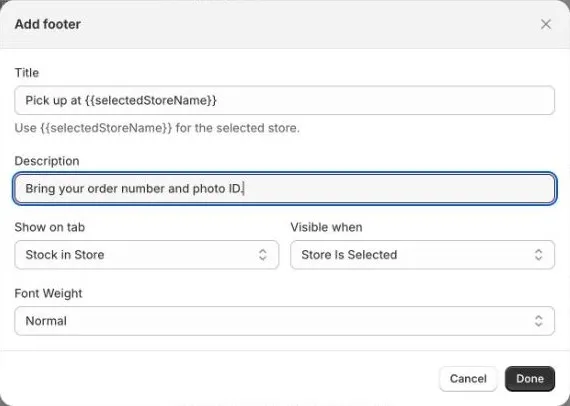
Each tab shows the first footer set to it. To show a different message, edit that footer, or delete it and add a new one.
Use Store Is Not Selected for a prompt, such as Choose a store to see pickup times, and Store Is Selected for details about that store.
Translate tabs and footers
Footer titles and descriptions can be translated in Translate in the app menu. See Translations.