Stock
Stock levels and messages
Set the safety buffer, when a store counts as low on stock, and the in stock, low stock, and out of stock messages customers see.
The Stock tab in Settings controls when a store counts as in stock, out of stock, or low on stock, and what customers see for each. Change a setting, then click Save at the top right.
Stock levels
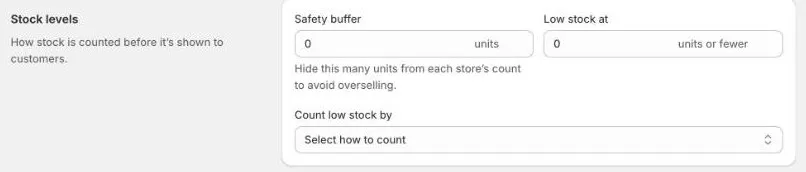
Safety buffer
The number of items a store must have before it shows as In stock.
- A store shows In stock when it has more than the safety buffer.
- It shows Out of stock when it has the safety buffer or fewer.
For example, with a safety buffer of 2, a store with 3 shows In stock, and a store with 2 shows Out of stock.
Use it to avoid sending customers to a store for the last one or two items, which may already be on hold or on display. Out of the box, it’s 0.
Set a different buffer for one product
To use a different buffer for a product, add a product metafield in Shopify:
- In your Shopify admin, go to Settings › Custom data › Products and add a metafield definition with the namespace and key
custom.shoppy_collect_buffer, and the type Integer. - Open the product and enter the buffer in the new field, for example
5. - Click Save.
The product’s buffer is used instead of the one in Settings.
Low stock
Show an extra message, such as Only a few left, when a store is running low.
| Setting | What it does |
|---|---|
| Low stock at | The level at which the low stock message shows. The message shows when stock is below this number. |
| Count low stock by | This variant’s quantity at the store: each store’s own stock. Total quantity across all stores: the product’s stock across all your stores added together. |
The low stock message only shows when you’ve entered a Low stock message under Stock messages. Leave it empty to turn it off.
The low stock message shows in the store list with the Anchor, Tab, Radio, Accordion, and Inline - Automatic Store Display display types. At the moment, it doesn’t show with Stacked or Drawer Accordion.
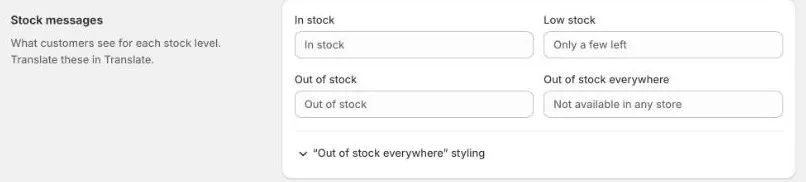
Stock messages
| Message | When customers see it | Example |
|---|---|---|
| In stock | On a store that has more than your safety buffer. | In stock |
| Low stock | On a store that’s below your Low stock at level. | Only a few left |
| Out of stock | On a store that has your safety buffer or fewer. | Out of stock |
| Out of stock everywhere | When no store is listed for the product, for example none nearby have it. | Not available in any store |
If you leave In stock, Out of stock, or Out of stock everywhere empty, the widget uses its own wording. The grey text in each field is only an example.
Click “Out of stock everywhere” styling to change the size, weight, and line height of that message.
To show these messages in other languages, use Translate in the app menu. See Translations.
Stock banners
Set the colours of the In stock and Out of stock banners in Stock banners, at the bottom of this tab:
- Click In stock banner or Out of stock banner.
- Set its Background Color, Font Color, Font Weight, and Border Radius.
- Click Advanced styling for the font size, spacing, border, and custom CSS.
- Click Save.
Use this tab for banner colours. Widget appearance also has a Stock banners section, but at the moment its changes don’t show on your online store.