Shoppers, translations, and integrations
Klaviyo integration
Send store searches, chosen stores, and store calls from the Find in Store widget to Klaviyo, and build Klaviyo segments for each store.
Find in Store can send what customers do in the widget to Klaviyo. Use it to email customers about the store near them, or to build a list of customers who are interested in a store.
There are two parts. You can use either one, or both:
| Part | What it does |
|---|---|
| Send widget events to Klaviyo | Records store searches, chosen stores, and store calls on each customer’s Klaviyo profile. |
| Klaviyo account | Connects your Klaviyo account, so you can create a segment for each store from the app. |
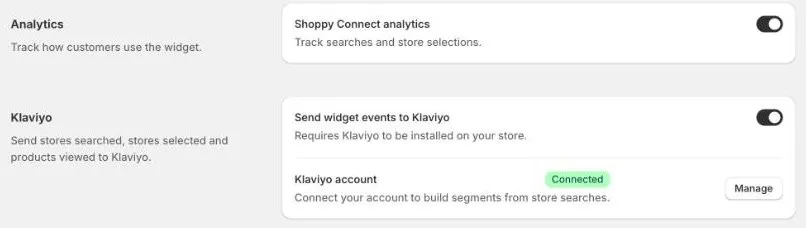
Send widget events to Klaviyo
Before you start
Klaviyo must be installed on your Shopify store, with its tracking turned on. If you use the Klaviyo Shopify app, this is usually already done.
Turn it on
- Go to Settings › Integrations.
- Under Klaviyo, turn on Send widget events to Klaviyo.
- Click Save.
What’s sent
| Klaviyo event | When it’s sent | What’s included |
|---|---|---|
| Shoppy FS - Searched Store | A customer searches for an address, or uses their location. | The address they searched, its country, latitude, and longitude. |
| Shoppy FS - Viewed Store | A customer chooses a store on a product page. | The store’s name, suburb, postcode, country, and location, and the product and variant. |
| Shoppy FS - Contacted Store | A customer clicks a store’s phone number in the store list. | The store’s details and phone number, and the product and variant. |
Searches made in the Shoppy FS - Header Inline, Shoppy FS - Footer Block, and Inline Nearest Store blocks are sent as Shoppy FS - Header Block - Searched Store.
When a customer chooses a store, their Klaviyo profile also gets a Preferred Store property, with the store’s name and address. Use it to personalise emails, for example to show their store’s opening hours.
Klaviyo only records events for customers it can identify, such as those who’ve signed up to your emails or clicked a link in one. Events from anonymous visitors aren’t saved.
Create segments for a store
A segment is a list of customers in Klaviyo. From the app, you can create a segment of customers who did something with one store, such as everyone who chose your Brisbane store in the last 30 days.
Connect your Klaviyo account
- Go to Settings › Integrations.
- Next to Klaviyo account, click Connect.
- On the Klaviyo Integration page, click Connect, then sign in to Klaviyo and allow access.
When it’s connected, Settings › Integrations shows Connected, and the button changes to Manage.
Create a segment
- Go to Settings › Integrations and click Manage next to Klaviyo account.
- Click Create Segment.
- Fill in the sentence:
- Person has: choose an event, such as Shoppy FS - Viewed Store.
- in the last: a number, then days, weeks, or hours. For example,
30days. - where: choose the store.
- Click Create.
The segment is named Shoppy FS - followed by the store name, for example Shoppy FS - Urban Stitch Brisbane. Klaviyo shows it as Processing while it adds customers.
An event only shows under Person has once Klaviyo has received it at least once. Turn on Send widget events to Klaviyo first, and wait for customers to use the widget.
Manage segments
The Segments list shows each segment, when it was created, and whether it’s Processing or Active. Click ⋯ next to a segment to:
- View in Klaviyo: open the segment in Klaviyo.
- Delete: delete the segment.
Check before you delete. The list shows every segment in your Klaviyo account, not only the ones made in Find in Store. Deleting a segment here deletes it from Klaviyo too.
Troubleshooting
| Problem | What to do |
|---|---|
| No Shoppy FS events in Klaviyo | Check Send widget events to Klaviyo is on and saved, and that Klaviyo is installed on your store. Test it as a customer who’s signed up to your emails. |
| No events to choose under Person has | Klaviyo hasn’t received any widget events yet. Wait for customers to use the widget, then try again. |
| The Klaviyo Integration page shows Something went wrong | The connection to Klaviyo may have expired. Contact us and we’ll reconnect it for you. |