Locations
Trading hours and special dates
Set each location's weekly trading hours, add holidays and one-off changes, and choose the default hours for new locations.
Customers see each store’s opening hours in the Find in Store widget, for example Open today 9:00 AM – 5:00 PM. Keep them up to date so customers don’t turn up to a closed store.
Set a location’s weekly hours
- Go to Locations and open the location.
- Under Trading hours, either:
- Tick Use default trading hours to use the default hours, or
- Untick it and set the hours for each day.
- For each day, use the switch to mark it open or closed, and set the opening and closing times.
- Click Save.
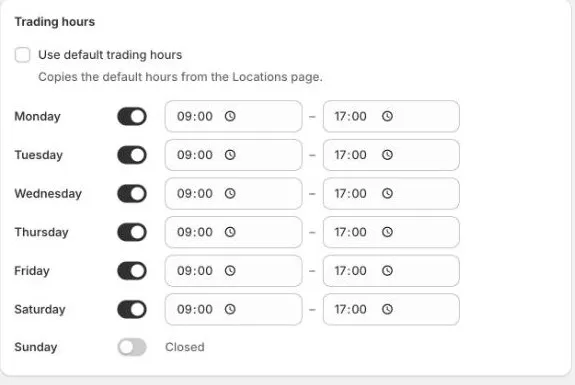
The closing time must be after the opening time. If it isn’t, you’ll see a message such as Monday: closing time must be after opening time.
Add a special date
Special dates are holidays or one-off changes, such as Christmas Day or a late-night shopping event. They override the weekly hours on that date.
- Open the location and scroll to Special dates.
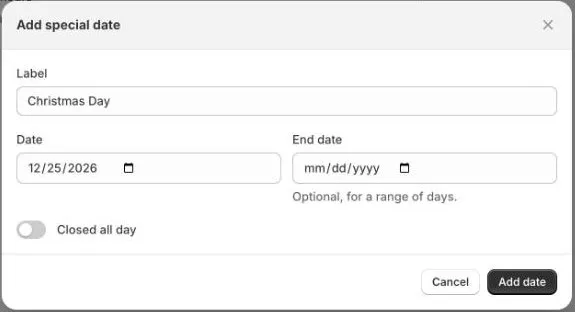
- Click Add date.
- Enter a Label, for example
Christmas Day. - Choose the Date. For a range of days, also choose an End date.
- Choose the hours:
- Leave the switch off for Closed all day.
- Turn it on for Open with custom hours, then set the opening and closing times.
- Click Add date, then click Save on the location.
The date is added to the list. Click Edit to change it, or Delete to remove it.
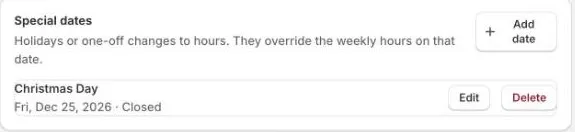
Special dates are set per location. Add public holidays to each store that closes for them.
Update hours for many locations
- Go to Locations.
- Tick the locations you want to change.
- Click Update hours.
- Set the hours, then save.
This replaces the weekly hours of the selected locations. Their special dates stay as they are.
Default trading hours
The default trading hours are a starting point for your locations. Out of the box, they’re Monday to Sunday, 9:00 AM to 5:00 PM.

To change them:
- Go to Locations and scroll to Default trading hours.
- Click Edit.
- Set the hours, then save.
The defaults are used when:
- You add a location by hand.
- You tick Use default trading hours on a location.
Changing the defaults doesn’t change locations you’ve already added. To update them, tick Use default trading hours on each one, or use Update hours.
Locations imported from Shopify don’t get the default hours automatically. Set their hours after you import them.
How customers see your hours
Customers see today’s hours under each store, for example Open Today 8:30 AM to 5:30 PM. They click the > next to it to see the rest of the week, and any special dates coming up.
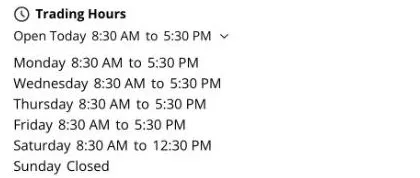
Hours show in 12-hour or 24-hour time, depending on Time format in Settings › Widget appearance. See Display types.