Getting started
Get a Google Maps API key
Create a Google Maps API key, add it to Shoppy Find in Store, and choose the map region and language.
Shoppy Find in Store uses Google Maps for address suggestions as customers type, and for the map. You create the key in your own Google Cloud account and add it to the app.
Without a key, customers can’t search by address.
Create a key in Google Cloud
You need a Google account. Google Maps Platform includes free monthly usage, but Google asks for a billing account before you can create a key.
- Go to the Google Cloud console and create a project, or pick an existing one.
- Set up a billing account for the project.
- Go to APIs & Services › Library and turn on:
- Maps JavaScript API, for the map.
- Places API, for address suggestions.
- Go to APIs & Services › Credentials, click Create credentials › API key, and copy the key.
For Google’s own step-by-step guide, click How to get a key in the app, or see Use API keys on Google’s site.
Restrict your key
Restrict your key so no one else can use it. Anyone who copies an unrestricted key can run up charges on your Google account.
In Google Cloud, open your key and:
- Under Application restrictions, choose Websites.
- Add your store’s domains, for example
your-store.com/*andyour-store.myshopify.com/*. - Under API restrictions, choose Restrict key and select Maps JavaScript API and Places API.
- Click Save.
Add the key to the app
- In the app, go to Settings › General.
- Paste your key into API key.
- Click Save at the top right.
The Added badge shows once a key is saved.
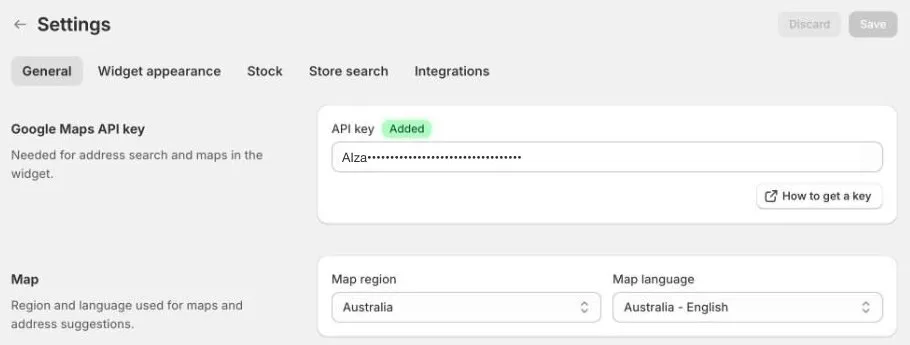
Choose the map region and language
In the Map section:
- Map region: the country address suggestions are focused on. Choose the country most of your customers are in, for example Australia.
- Map language: the language of the map and address suggestions, for example Australia - English.
Click Save after you change them.
If address search doesn’t work
- Check Maps JavaScript API and Places API are both turned on in Google Cloud.
- Check the project has a billing account.
- If you restricted the key, check your store’s domains are on the list, exactly as customers see them.
- Changes in Google Cloud can take a few minutes to apply.