Getting started
Add the widget to your product page
Add the Shoppy FS - Widget app block to your product page in the Shopify theme editor, and check it's live.
The widget is what customers see on your product pages. You add it to your theme as an app block, in the Shopify theme editor. You don’t need to edit any code.
Your theme needs to support app blocks on the product page. Most current Shopify themes do, including all free Shopify themes.
Add the widget
- In the app, go to Home and click Open theme editor in the Widget status card. The theme editor opens on your product page, with the widget block already added.
- Check the Shoppy FS - Widget block is in the product information section.
- Drag the block to where you’d like it, for example under the Buy buttons.
- Click Save at the top right of the theme editor.
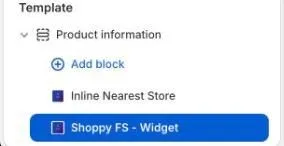
The block has no settings in the theme editor. You choose how it looks and what it says in the app, under Settings.
Add it by hand
If you’d rather add the block yourself:
- In your Shopify admin, go to Online Store › Themes and click Customize on your live theme.
- Choose Products › Default product from the page menu at the top.
- In the product information section, click Add block.
- Click the Apps tab and choose Shoppy FS - Widget.
- Click Save.
If you use more than one product template, add the block to each template you want it on.
Check it’s working
Open a product page on your online store. You’ll see the widget’s button under your buy buttons, or wherever you placed the block.
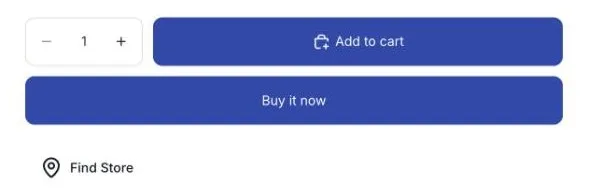
The button text shown here is Find Store. You can change it in Settings › Widget appearance, or in Translate.
Then go back to Home in the app and click Check again in the Widget status card. It shows Live once the app finds the block on your live theme.

If Widget status says Not added
- You haven’t saved the theme. Save it in the theme editor, then click Check again.
- The block is in a theme you haven’t published. The app only checks your live theme.
- The block is inside a group or another block. The app may not find it there. If the widget shows on your product page, it’s working, even if the status says Not added.
- The block is on another product template. The app checks your default product template.
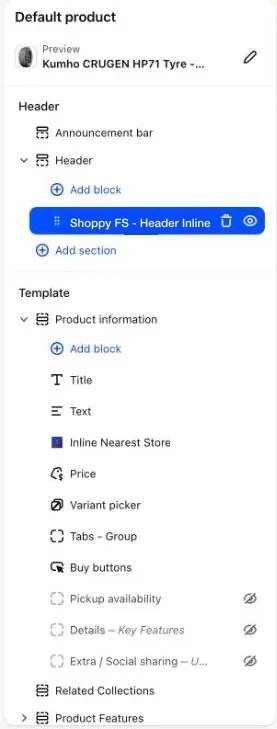
- You use a different Find in Store block. The status only looks for Shoppy FS - Widget. If your product pages use Inline Nearest Store instead, or you only use the Header Inline block, the status says Not added even though your blocks are working.
To see which blocks you’ve added, open the theme editor and look at the list on the left. Find in Store blocks have the app’s icon next to them.
If the widget doesn’t show on your product page
- Check you saved the theme and are looking at your live theme.
- Check you have at least one active location in Locations.
- Check your free trial hasn’t ended, or that you’ve chosen a plan.
- Try a normal browser window, not a private one, and refresh the page.
Still stuck? Email help@shoppycommerce.com.au with a link to the product page, and we’ll take a look.